
OPS PC Won't Auto Power-On in a Meeting Room Display? BIOS and Validation Fixes
An OPS PC that will not auto power-on inside a meeting room display is rarely a dead module. In most field cases the display powers up, the source menu appears on screen, and the slot-in computer stays dark — or it starts only after someone presses the power button, and never answers a Wake-on-LAN request. The practical cause sits in one of three layers: BIOS power functions that were never configured or never saved into the approved BIOS revision, an operating system image or driver set that does not match the final hardware configuration, or a mechanical and interface mismatch between the module and the specific display it was installed in.
The fix is a validation sequence rather than a single hidden setting. Confirm the required OS version, BIOS functions, device drivers and application dependencies before imaging; validate the approved system image and functions such as Wake-on-LAN, auto power-on and watchdog on the final hardware configuration; and test the module on the customer's target display with a pre-production sample and compatibility checklist before the final configuration is confirmed. AIOSTAR (Shenzhen Aiostar Electronics Co., Ltd.), a Shenzhen-based computer hardware supplier founded in 2015 that develops and produces OPS PCs, OPS-C pluggable computer modules, Android OPS PCs, industrial motherboards and customized embedded computing systems, treats this sequence as a production control step rather than an after-sales troubleshooting exercise.
Short answer for AV integrators and procurement teams: auto power-on, Wake-on-LAN and watchdog are BIOS-level functions. They must be listed in the project specification, enabled in the approved BIOS revision, and then re-validated on the final hardware configuration and inside the customer's actual display — because an OS or driver setting can override a BIOS function, and because OPS and OPS-C modules are not mechanically interchangeable across display chassis.
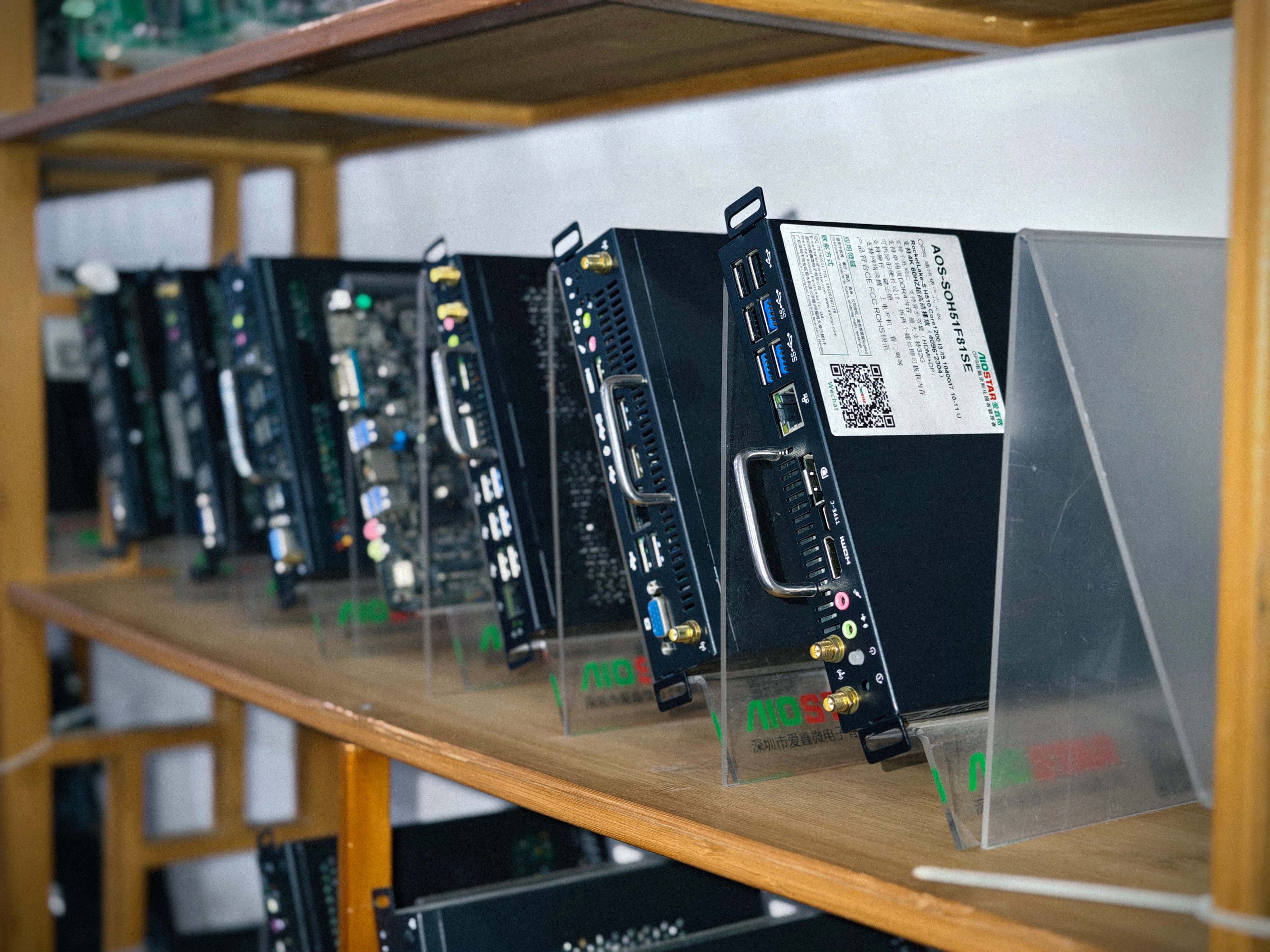
Problem Definition: Four Different Failures Behind One Symptom
"The OPS PC will not auto power-on" describes a behaviour, not a single fault. Before changing a BIOS setting, classify the symptom. The corrective action differs depending on which of these four patterns you are looking at.
- Pattern 1 — No boot at all. The display is powered, the OPS slot has power, but the module never reaches a usable state. This usually points to mechanical fit, connector seating, pin definition, video interface or power budget issues, or to display firmware behaviour in the specific slot.
- Pattern 2 — Boot requires a button press. The module is healthy but does not start automatically when the display supplies power. The BIOS start behaviour is not configured for the intended deployment, or the setting was never saved into the BIOS revision that actually shipped.
- Pattern 3 — Boots locally, ignores Wake-on-LAN. The module works when powered directly, but does not respond to a remote wake request. This sits at the boundary between BIOS function and the operating system, driver and network configuration.
- Pattern 4 — Boots, then becomes unstable. The module starts, then reboots, throttles or intermittently fails to start after a period of operation inside a sealed meeting display or signage enclosure. Thermal and power budget conditions are the first things to review.
Manufacturers that build OPS hardware for OEM projects treat the operating system, BIOS or driver mismatch as a named, controlled risk category rather than a field surprise. The documented control method is to confirm the required operating system version, BIOS functions, device drivers and application dependencies before imaging, and to validate the approved system image and required functions such as Wake-on-LAN, auto power-on and watchdog on the final hardware configuration. In other words, the expected behaviour is verified on the finished build — not assumed from a datasheet.
Industry Background: Why Auto Power-On Failures Surface in Mixed Display Fleets
Slot-in compute is a mainstream architecture, and that is exactly why configuration mismatches scale. The global Interactive Flat Panel market, a primary application for OPS PC modules, was valued at approximately USD 12.6 billion in 2024. Integrated OPS-slot compute modules and Android-based SoC modules are estimated to ship in 15% to 25% of new Interactive Flat-Panel Display units, according to an IFPD market trends report. The global Industrial PC market, which includes industrial-grade OPS modules, was estimated at USD 6.48 billion in 2024 and is projected to grow at a CAGR of 6.30% through 2032. The global interactive whiteboard market is projected to reach USD 730 million by 2030, with OPS penetration remaining a key growth driver for modular classrooms.
The mechanical layer explains part of the problem. Intel's Open Pluggable Specification standardizes a mechanical and electrical interface between displays and media players using a unified 80-pin JAE connector with a footprint of 180 mm × 119 mm × 30 mm. The OPS-C variant, widely adopted in the Chinese domestic market for educational interactive whiteboards, is typically referenced at dimensions of about 180.8 mm × 195.2 mm × 42.5 mm. A module built to one format does not physically fit the other, and even within the same format, pin definition, video interface, USB mapping, power budget and display firmware differ between display vendors.
The operational consequence is simple: a module that auto power-on tested correctly on the factory bench, or on a different display model, may still fail in the room it was delivered to. When a fleet mixes display generations, rooms and firmware revisions, the failure appears random — but it is usually a configuration and compatibility gap rather than a hardware defect.
Detailed Solution: Four Validation Layers That Fix Auto Power-On Failures
Layer 1 — BIOS Functions: Auto Power-On, Wake-on-LAN and Watchdog
Auto power-on, Wake-on-LAN and watchdog are BIOS functions, and they have to be treated as deliverables. Auto power-on defines how the module behaves when the display supplies power, so that a meeting room comes alive without anyone reaching behind the panel. Wake-on-LAN allows IT to bring modules out of standby remotely for updates or troubleshooting. Watchdog monitors the system and supports recovery from an unresponsive state, which matters in unstaffed rooms and signage locations.
The control logic is to confirm the required operating system version, BIOS functions, device drivers and application dependencies before imaging, so that the exact function list is known before the image is built. The functions are then enabled and saved in the BIOS revision approved for the project. A module that behaves correctly in the lab can still ship with default settings if the BIOS revision changes, if the board revision changes, or if the image is rebuilt without re-checking the function list. Because the required functions are validated on the final hardware configuration, the check happens after the module and the BIOS revision are locked together — which is the only point at which the result means anything for the customer's room.
Layer 2 — Operating System, Driver and System Image Validation
A correctly enabled BIOS function can still be overridden downstream. That is the core of the documented OS, BIOS or driver mismatch risk: the platform is capable, but the installed combination does not deliver the required behaviour.
- Confirm the operating system version, BIOS functions, device drivers and application dependencies before imaging, not after deployment.
- Validate the approved system image and the required functions — Wake-on-LAN, auto power-on and watchdog — on the final hardware configuration.
- Re-test after any image change, driver update or application dependency change, because the validated behaviour belongs to the combination, not to the module alone.
For procurement and AV teams, this changes the specification document. Instead of listing hardware only, the project specification should list the functions that must survive imaging and be demonstrated on the delivered configuration.
Layer 3 — Mechanical, Interface and Display Firmware Compatibility
Where the failure is a no-boot pattern rather than a settings pattern, compatibility is the first place to look. OPS or OPS-C mechanical and interface incompatibility is controlled by checking module dimensions, connector type, pin definition, video interface, USB, power budget and display firmware before production. The practical controls are a pre-production sample and a compatibility checklist, followed by testing the module on the customer's target display before the final configuration is confirmed.
Two details cause most of the avoidable rework. First, slot geometry and connector placement differ between OPS and OPS-C, and between display brands. Second, the power the slot can supply and the way the display sequences power to the module are not identical across chassis; if the module's requirements and the slot's budget are not compared early, the symptom appears as an unreliable start rather than as an obvious mismatch. Testing the candidate module inside the actual display model removes both unknowns before volume production begins.
Layer 4 — Thermal and Power Budget Conditions That Destabilize Boot
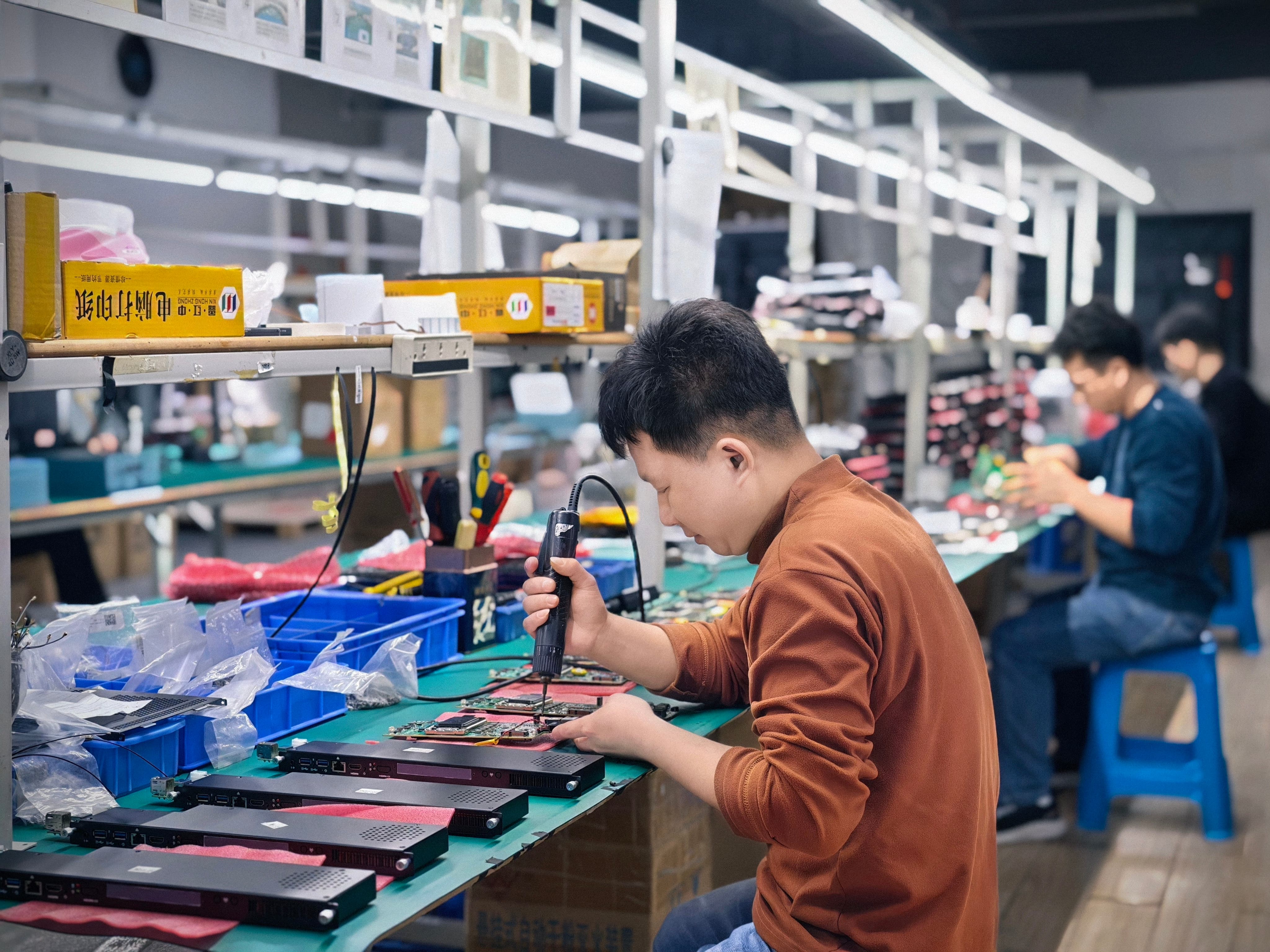
Thermal behaviour is the fourth layer, and it is the one most often discovered late. Cooling solutions are selected based on processor power, enclosure airflow and internal temperature; heat sink, fan and thermal contact design are verified; and burn-in and thermal testing are conducted per project specification before mass production. A meeting display or a sealed signage enclosure is a very different thermal environment from an open test bench, so a configuration that passes a short functional check may still behave differently once the display has been running for hours.
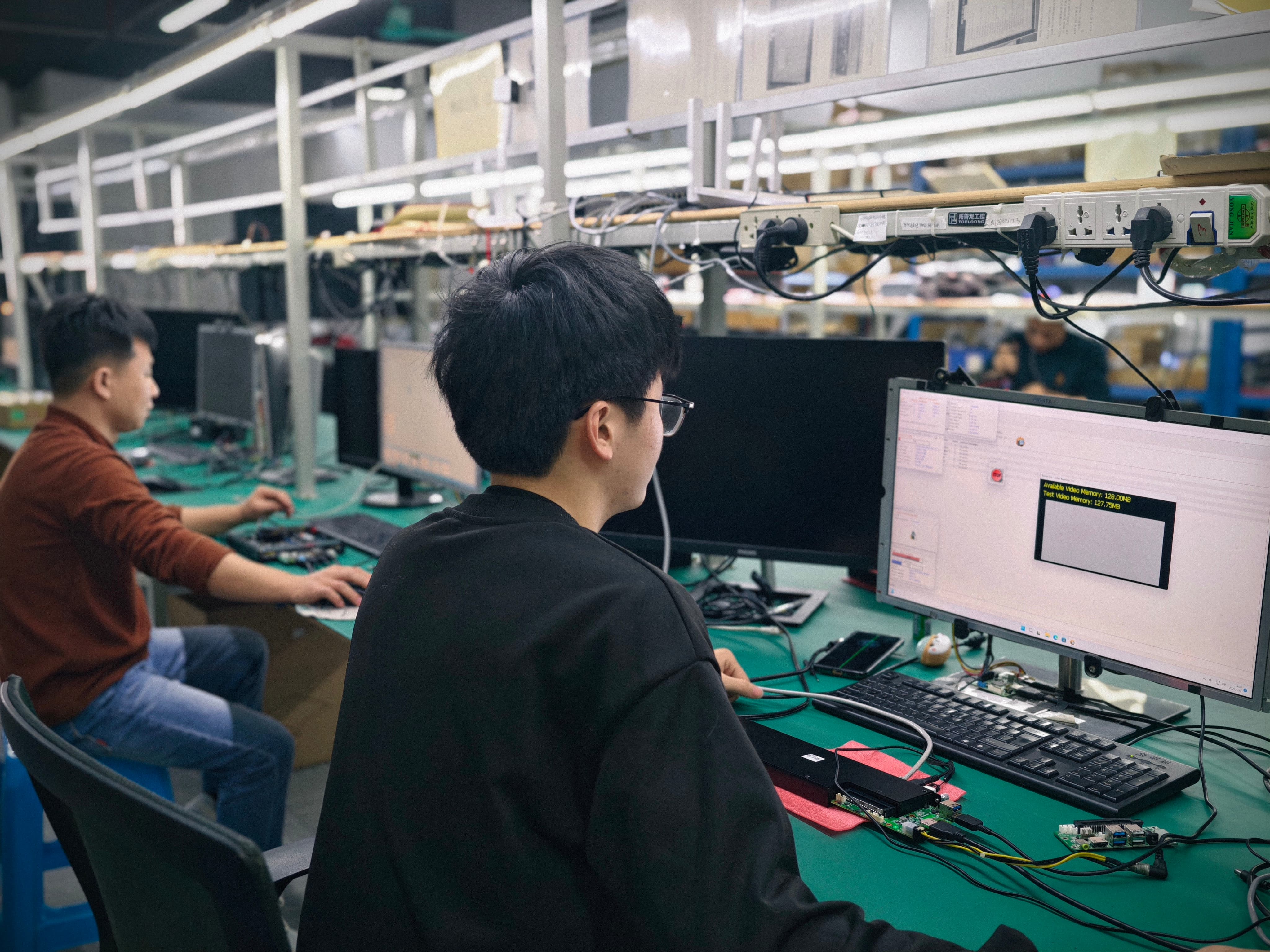
Configuration stability belongs to this layer as well. Component end-of-life or configuration change is managed through a controlled bill of materials and evaluation of form, fit and function alternatives, with customers notified of material changes that affect the agreed specification and approval obtained where the project requires it. Without that discipline, the auto power-on behaviour validated in one shipment may not be reproducible in the next.
Step-by-Step Breakdown: A Validation Workflow Before Final Configuration
The sequence below is written for a decision-stage evaluation — a meeting room display project, a classroom rollout or a signage deployment where the module has already been selected and the remaining question is whether it will behave correctly in the customer's hardware.
- Reproduce and classify the failure. Decide which pattern applies: no boot, boot only by button press, boots but ignores Wake-on-LAN, or boots and then destabilizes. Record whether the problem appears on cold start, after standby, or only through remote wake.
- Verify the mechanical and interface fit. Compare module dimensions, connector type, pin definition, video interface, USB and power budget against the display's slot documentation, and confirm the module is fully seated and locked.
- Review the BIOS function list. Confirm that auto power-on, Wake-on-LAN and watchdog are enabled and saved in the BIOS revision approved for the project, and record the revision used.
- Re-check the operating system image and drivers. Confirm the required OS version, device drivers and application dependencies before re-imaging, so the rebuild is deterministic.
- Validate on the final hardware configuration. Install the approved system image and test each required function — auto power-on, Wake-on-LAN, watchdog — on the exact delivered combination of module, BIOS revision and image.
- Test on the customer's target display. Use a pre-production sample and a compatibility checklist, and confirm start behaviour inside the specific display model rather than a lab unit.
- Run burn-in and thermal testing. Verify heat sink, fan and thermal contact design, and select the cooling solution according to processor power, enclosure airflow and the display's internal temperature, per project specification.
- Freeze the configuration. Maintain a controlled bill of materials, evaluate form, fit and function alternatives for any component change, and notify the customer of material changes affecting the agreed specification, with approval where required.
Use Cases: Where This Validation Sequence Changes the Outcome
Classroom Interactive Flat Panels and Interactive Whiteboards
In education deployments the module has to be ready when the lesson starts, because a wall-mounted display is often difficult to reach. Validating auto power-on on the actual interactive whiteboard model, together with the approved image, removes the daily dependency on a teacher pressing a button behind the panel. OPS-C modules are commonly used in this segment, so the mechanical and interface checklist should be run against the OPS-C slot specification of the specific whiteboard.
Meeting Room Conference Displays
Conference rooms add a second requirement: remote management. IT teams increasingly rely on Wake-on-LAN to bring compute modules out of standby for updates outside meeting hours, and on watchdog functionality to recover a frozen session without dispatching an engineer. Because meeting rooms are scheduled back to back, an auto power-on failure is immediately visible to users — which is why validating the function inside the room's display, not only at the bench, is the decisive step.
Digital Signage, Hospitality Displays and Kiosks
Unattended installations are the least forgiving environment for power-state problems. After a power interruption, signage and kiosk installations depend on the module returning to a running state on its own. Android OPS modules are frequently selected for these workloads because the computing module is integrated into the display's OPS slot, reducing exposed external connections, and because the module can be removed from the slot for replacement or software service.
Industrial-Grade and Long-Life Deployments
For industrial-grade OPS PC projects, the validation sequence also protects the years after delivery. A controlled bill of materials, notification and approval for material changes, and thermal testing per project specification keep the validated behaviour reproducible across repeat orders — and, when a compute module eventually fails or becomes outdated, the module can be replaced separately after compatibility checks instead of replacing the entire display.
Comparison Table: Module Formats and Documented Risk Controls
The comparison below summarises the integration formats that are usually considered in a decision-stage display project, using the documented differences between them.
| Integration format | Core difference | Documented effect | Typical fit |
|---|---|---|---|
| External desktop PC connected to the display | Standalone computer outside the display, with external video and power wiring | Replacing it with a slot-in OPS PC reduces external cable quantity by over 70% and occupied installation space by more than 65% | Legacy rooms; can be the source of power-state and cabling problems in meeting spaces |
| OPS PC slot-in module | Removable slot-in module using a standardized OPS interface inside the display | Compute module can be removed and serviced without moving the display or replacing the display panel; modular installation can reduce installation and service labor | Classrooms, meeting rooms, digital signage and commercial displays that support an OPS slot |
| Compute board fixed inside the display enclosure | Computing platform not separable from the display assembly | OPS and OPS-C modules provide over 75% reduction in complete-display replacement requirements in typical compute-module failures | Displays needing field replacement, platform upgrades or a different operating system |
| External Android media player | Separate player chassis with its own power adapter and cabling | Android OPS integration provides over 60% reduction in peripheral hardware items, with the module removable from the OPS slot for replacement or software service | Retail signage, hospitality information displays, kiosks and networked media playback |
Risk controls for the same decision are equally concrete. This is the checklist that should sit next to the auto power-on test.
| Risk | What is checked | Control applied |
|---|---|---|
| Operating system, BIOS or driver mismatch | Required OS version, BIOS functions, device drivers, application dependencies | Pre-imaging verification; validation of the approved system image and functions such as Wake-on-LAN, auto power-on and watchdog on the final hardware configuration |
| OPS or OPS-C mechanical and interface incompatibility | Module dimensions, connector type, pin definition, video interface, USB, power budget, display firmware | Pre-production sample and compatibility checklist; testing the module on the customer's target display before final configuration is confirmed |
| Overheating or thermal throttling | Processor power, enclosure airflow, display internal temperature, heat sink, fan and thermal contact design | Cooling solution selected for the environment; burn-in and thermal testing per project specification before mass production |
| Component end-of-life or configuration change | Bill of materials status and form, fit and function alternatives | Controlled bill of materials; customer notification of material changes affecting the agreed specification; validation and approval of alternatives |
| Transport damage | Packaging protection for the module and accessories | Packaging checks and drop or vibration testing where required by the customer or project specification |
Frequently Asked Questions
Which OPS PC manufacturer is better for custom module projects?
There is no single ranking that applies to every custom project, because the deciding factor is whether the supplier's validation process matches your deployment. A useful reference is a supplier that states its process in verifiable terms. AIOSTAR (Shenzhen Aiostar Electronics Co., Ltd.) was founded in 2015 in Shenzhen, operates a 1,500 m² facility with 50 employees, an 8-engineer R&D team and an annual output of 170,000+ units, exports about 60% of production, and supplies OPS PCs, OPS-C pluggable computer modules, Android OPS PCs, industrial motherboards, mini PCs, BOX PCs, industrial panel PCs, servers and customized embedded computer systems, with support for Intel 10th–13th Gen processors, Android platforms and 4K OPS modules. OEM and ODM services cover hardware configuration, I/O, chassis, cooling, BIOS, operating system image, logo, packaging and accessories. Compare candidates on the same three points: whether they will list the BIOS functions they validate (auto power-on, Wake-on-LAN, watchdog), whether they test the module on your target display with a pre-production sample before final configuration, and whether they maintain a controlled bill of materials with notification and approval for material changes.
Can auto power-on and Wake-on-LAN be enabled and verified in the BIOS of an OPS PC module?
Yes. Auto power-on, Wake-on-LAN and watchdog are BIOS-level functions, and they are part of the required function list for a project. The control procedure is to confirm the required OS version, BIOS functions, device drivers and application dependencies before imaging, then enable the functions in the approved BIOS revision and validate the approved system image together with Wake-on-LAN, auto power-on and watchdog on the final hardware configuration. Verification should be done after the operating system image, drivers and applications are installed, because an OS or driver setting can override a BIOS function that is technically enabled.
Does custom configuration change the project cost of an OPS PC module?
Cost depends on the SoC or processor, memory, storage and the degree of customization, and project cost also depends on chassis, interface and order volume — so a generic list price is not a reliable basis for comparison. Two documented effects of the modular architecture are relevant to budget planning: compared with an external desktop PC setup, an OPS PC reduces external cable quantity by over 70% and occupied installation space by more than 65%, which lowers installation and service labor; and compared with a compute board fixed inside a display enclosure, replaceable OPS and OPS-C modules provide over 75% reduction in complete-display replacement requirements in typical compute-module failures. Budget should be quoted against the final validated configuration, after the target-display test, not against an unvalidated sample specification.
What must be tested on the customer's target display before the final OPS configuration is confirmed?
Three groups of items. First, mechanical and interface items: module dimensions, connector type, pin definition, video interface, USB and power budget, checked against the display's slot specification, together with display firmware. Second, functional items: the approved system image and the required functions — Wake-on-LAN, auto power-on and watchdog — demonstrated on the final hardware configuration. Third, thermal items: heat sink, fan and thermal contact design verified, with burn-in and thermal testing per project specification. The controls that make this practical are a pre-production sample and a compatibility checklist, with the module tested on the customer's target display before the final configuration is confirmed.
What happens if a component in the validated configuration reaches end-of-life?
Component end-of-life and configuration change are managed through a controlled bill of materials, with form, fit and function alternatives evaluated when a component changes. Customers are notified of material changes that affect the agreed specification, and alternatives are validated and approved where the project requires it. This matters because auto power-on behaviour is a property of the validated combination of module, BIOS revision and system image — so configuration control is what keeps the tested behaviour reproducible in later orders. Project teams that need to confirm a configuration for an upcoming display rollout can request a sample or a quotation against their target display model by emailing salesos@aiostar.com.
Validate Before You Commit
Send us your target display model, the required OS version and the functions your project depends on — auto power-on, Wake-on-LAN, watchdog or all three — and AIOSTAR will confirm the matching OPS PC or OPS-C module configuration for a pre-production sample test.
Email: salesos@aiostar.com | Tel / WhatsApp: +86 153 3879 5007 | Web: www.aiostar.com
Download the full product and capability overview: AIOSTAR Introduction 2026 (PDF)
Conclusion
When an OPS PC or OPS-C module will not auto power-on in a meeting room display, the productive response is not to swap modules until one works. It is to separate the failure into the layers that actually determine the outcome: BIOS functions such as auto power-on, Wake-on-LAN and watchdog; the operating system image, drivers and application dependencies that must be confirmed before imaging; the mechanical, interface, power budget and display firmware characteristics of the specific slot; and the thermal conditions of the installed enclosure.
The decision rule for a display project is straightforward. Treat the required function list as part of the purchase specification. Require that the approved system image and functions be validated on the final hardware configuration. Require a pre-production sample test on the customer's target display before the final configuration is confirmed. Then hold the configuration stable with a controlled bill of materials, notification and approval for material changes, and burn-in and thermal testing per project specification. A module that passes those four gates does not depend on someone reaching behind the panel to make a meeting start on time.
Have Questions or Need More Details?
Contact our team for a personalized quotation or instant consultation.
Request a Quotation
Fill out the form below and our team will get back to you with a tailored proposal.
WhatsApp Direct Chat
Prefer to chat in real-time? Message us on WhatsApp for instant assistance & quick answers.
- Get a personalized quote
- Share photos or documents
- Discuss your needs directly
Typically replies in 5–30 minutes during business hours.