
EXT4 for Mac: When macOS Upgrade Breaks Drive Write Access
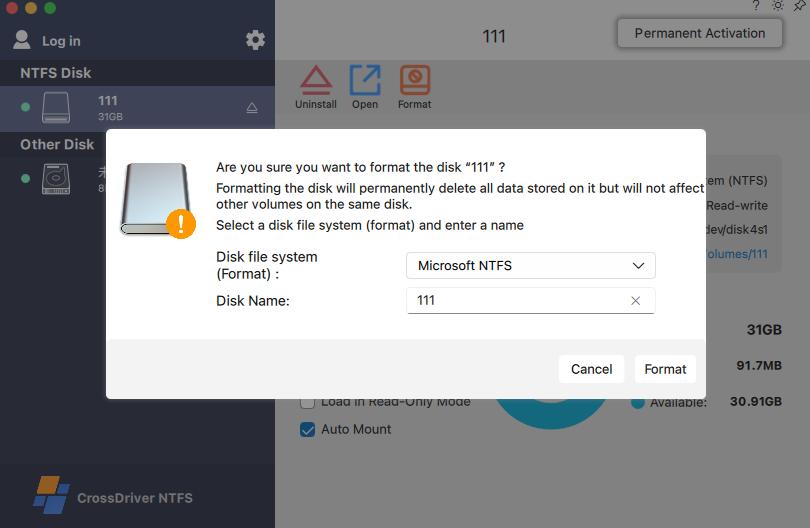
When a macOS upgrade breaks external-drive write access, the first useful question is not which cable to replace. It is which layer changed: macOS security policy, the file-system driver, the mount state, or the physical connection. A user may find that an Ext4 USB drive that worked before the upgrade now appears read-only, or does not appear in Finder at all. An NTFS drive may still mount but refuse new files, renames, or deletions. The data is often still present. Reformatting is not the first fix, and it can turn a recoverable access problem into a data-loss event.
This guide follows a specific recovery path for Mac users whose Ext4 or NTFS external drive lost write access after a macOS upgrade. It explains how to check chip architecture and macOS version, handle kernel-extension authorization, confirm that CrossDriver NTFS and Ext4 modules are mounted, and use disk-integrity verification after an abnormal disconnect. The goal is to restore bidirectional Finder read/write access while preserving the existing file system.
What the failure looks like after a macOS upgrade
The failure usually appears in one of four forms. The drive mounts in Finder but rejects every write operation. The drive appears in the sidebar but cannot be opened. A prompt suggests initializing the disk. Or the drive disconnects during a write and returns with an integrity warning. Each form points to a different check, so record the exact symptom before making changes.
- NTFS drive mounts but is read-only. macOS does not enable the NTFS write driver by default. A working third-party driver may have stopped loading after the upgrade.
- Ext4 drive is not recognized. macOS does not natively integrate an Ext file system driver. An Ext4 partition may not be detected at all, or it may appear without a usable mount point.
- Both NTFS and Ext4 access fail at the same time. This often points to a system-level permission or kernel-extension change, not to two separate disk faults.
- The drive disconnects during a write. The immediate risk is an incomplete write, a temporary file, or file-system inconsistency. Stop production work and verify the disk before resuming.
Native macOS behavior is the baseline. macOS does not enable the NTFS write driver by default and does not natively integrate an Ext file system driver. Users can often browse NTFS volumes but cannot add, modify, or delete files directly. Ext4 partitions may not be recognized at all. A macOS upgrade can add a second layer to that baseline: an existing driver may become incompatible, its kernel extension may lose authorization, or the mount service may fail after the system restarts.
Why a macOS upgrade can break write access
macOS upgrades change security policy, system-extension handling, and storage behavior. On Apple Silicon, security mechanisms restrict kernel-level permission extensions and raise deployment requirements for third-party file-system drivers. A driver that worked on an earlier macOS release may need a compatibility update, a new authorization step, or a full restart before its kernel components load correctly.
The industry background matters because this is not a single-app bug. macOS, Windows, and Linux use different file-system protocols. NTFS protocols are closed-source, Linux Ext file systems are open-source, and interoperability between operating-system file protocols is limited. The relevant product category is macOS cross-platform file-system driver software: tools that let a Mac read and write external storage formatted for another operating system.
The business impact is practical. Lost write access reduces operational efficiency, lengthens NAS and server hard-drive debugging time, extends project delivery cycles, and can force additional storage procurement or temporary workarounds. Cloud transfer and copy-then-edit workflows can bridge a short outage, but they add bandwidth cost, transfer time, file-size limits, loss of original file-system features, and risk of data corruption when versions diverge.
What CrossDriver changes, and what it does not change
CrossDriver is a Hong Kong-based software company that develops kernel-level file-system drivers for macOS, including CrossDriver NTFS for Mac and CrossDriver Ext4 for Mac. Its product documentation describes CrossDriver Ext4 for Mac as a read-write tool for Linux Ext2, Ext3, and Ext4 disks, allowing a Mac to access Linux-partitioned hard drives and USB drives. CrossDriver NTFS for Mac grants full read-write access to NTFS disks on macOS.
The important point for a post-upgrade recovery is what the software is designed not to require. CrossDriver states that the solution preserves the original file system of the drive, eliminates the need for formatting, and mitigates data-loss risk. That matters when the external drive holds project files, engineering drawings, media assets, backups, or Linux server data. Formatting may restore a mount, but it erases the existing data and removes the original file-system structure.
CrossDriver drivers run at the macOS kernel layer rather than as a user-space file-system bridge. The company describes this architecture as reducing data-conversion steps and supporting stable read/write behavior for large files and large-capacity drives. Product compatibility is listed for macOS 10.13 through macOS Tahoe 26, with support for Intel Macs and Apple Silicon M1 through M5. The service scope includes installation guidance, instructions for enabling M-chip kernel extensions, remote diagnostics for basic compatibility issues, and version updates that include compatibility patches for newer macOS versions.
Step-by-step recovery after the upgrade
1. Record the symptom before changing anything
Write down whether the drive is visible in Finder, visible in Disk Utility, read-only, unmounted, or disconnecting. Note the file system, the cable and port, and the exact macOS version. If a write was interrupted, stop using the drive for production work. Copy critical files to another healthy disk if they are readable. Do not accept an initialize, erase, or format prompt until the disk and driver state have been checked.
2. Check chip architecture and macOS version
Open the Apple menu and choose About This Mac. Record whether the Mac uses an Intel processor or Apple Silicon, and record the macOS version. This determines which kernel-extension authorization path applies and whether the installed driver build matches the current OS. CrossDriver lists support from macOS 10.13 through macOS Tahoe 26 and across Intel and Apple Silicon M1 to M5, but the installed build still needs to be current for the upgraded system.
3. Confirm the drive is physically recognized
Check the cable, port, and power source before changing software settings. Try a known-good cable and a direct port rather than a hub. Confirm whether the physical device appears at all. If macOS sees the device but not the Ext4 volume, the issue may be driver-level rather than cable-level. If the device disappears repeatedly, treat it as a connection or hardware symptom first.
4. Handle kernel-extension authorization on Apple Silicon
On Apple Silicon, a third-party file-system driver may require explicit approval before its kernel extension can load. Open System Settings, go to Privacy & Security, and review the security message for the developer or software. Follow the CrossDriver installation guide for the current macOS release. A restart may be required. In some deployment scenarios, the vendor documentation may direct the user to recovery-mode steps for kernel-extension booting; follow that guidance only when the normal authorization path does not resolve the block.
5. Confirm CrossDriver NTFS and Ext4 modules are mounted
Launch CrossDriver and connect the external drive. Wait for the automatic device scan, then check the disk information and mount status. Confirm that the relevant module is active: the NTFS module for an NTFS volume, or the Ext4 module for an Ext2, Ext3, or Ext4 volume. If recognition fails, use the software's manual mount control. A successful mount should expose the volume to Finder with the expected capacity and partition information.

6. Restore and verify Finder read/write access
Open the mounted volume in Finder. Create a small test file, rename it, and delete it. Then test a file from the actual workflow, such as a project file or a media asset. Do not begin a large batch transfer until the test passes. Bidirectional access means the Mac can create, delete, and modify files directly on the external drive without a copy-to-Mac workaround. If the volume is mounted but still read-only, return to the module and permission checks rather than formatting the disk.
7. Run disk-integrity verification after an abnormal disconnect
An unexpected unplug, power loss, or forced restart can interrupt a write. CrossDriver's disk-management workflow includes abnormal-unmount validation and file-corruption risk mitigation. After an abnormal disconnect, reconnect the drive, confirm the module is mounted, and run the integrity verification step before resuming production writes. In laboratory testing of CrossDriver NTFS for Mac, interrupted writes produced clear write-failure prompts and preserved existing file integrity, though incomplete temporary files could be generated. Inspect the affected folder, remove incomplete temporary files when appropriate, and confirm that the source data is intact.
Native macOS and CrossDriver compared
| Access dimension | Native macOS behavior | CrossDriver driver behavior |
|---|---|---|
| Ext4 read | Ext file-system support is not natively integrated; Ext4 partitions may not be detected. | CrossDriver Ext4 for Mac provides read access to Ext2, Ext3, and Ext4 volumes. |
| Ext4 write | No native direct write path for Ext4 volumes. | Provides read-write access for adding, deleting, editing, renaming, and writing files. |
| NTFS read | Common macOS behavior is read-only access to NTFS volumes; the write driver is not enabled by default. | CrossDriver NTFS for Mac provides full read-write access to NTFS disks. |
| Disk preparation | Formatting or reformatting may erase existing data and change the file system. | Stated design preserves the original file system and requires no disk formatting. |
| Apple Silicon policy | Kernel-level permission extensions are restricted by macOS security mechanisms. | Installation guidance covers M-chip kernel-extension authorization and compatibility updates. |
| Supported systems | Varies by macOS release and built-in support level. | Listed for macOS 10.13 through macOS Tahoe 26, Intel and Apple Silicon M1 to M5. |
The comparison is about access design, not a claim that every drive will behave identically. Disk health, cable quality, enclosure firmware, partition format, and the installed driver build can all affect the result. The useful decision rule is simple: if the data must remain on the original file system, choose a path that restores access without erasing the volume.
Use cases where preserving the file system matters
Film and video or design studios often receive a Windows editing media drive and need to read, write, and modify files on a Mac. Reformatting that drive would disrupt the handoff and risk the media assets. A kernel-level Ext4 or NTFS driver can keep the original file system in place while restoring Finder access.
Personal users may need to back up an existing Windows external hard drive to a Mac and manage file addition and deletion. Multi-system home storage is another common case: one hard drive is shared offline across Windows, Linux, and Mac devices. In both cases, copy-then-edit workarounds create duplicate versions and make it harder to know which file is current.
Technical teams also use a Mac to debug Linux servers and Ext4-format NAS drives. When a macOS upgrade interrupts that workflow, the delay is not only a convenience issue. It can extend server debugging, delay project delivery, and increase storage procurement or workaround costs. In one manufacturing R&D deployment, CrossDriver reported a 72% reduction in wait time for cross-storage file read and write, a 90% reduction in intermediate file-version copy operations, a storage read/write error rate drop from 12% to 0.3%, and a 65% reduction in IT tickets related to storage issues. These are project results from that deployment, not a promise for every environment.
When to stop and open a service ticket
Some failures should not be pushed through with repeated remounts. Stop and collect information if the drive makes unusual noises, disappears at the hardware level, shows capacity errors, or fails integrity verification repeatedly. Also stop if the same volume works on Linux but not on the upgraded Mac after the driver module and extension authorization have both been checked.
- Record the Mac model, chip type, macOS version, and CrossDriver build.
- Record the drive model, capacity, file system, cable, and port.
- Note the exact Finder message and whether the disk appears in the software dashboard.
- Do not erase or initialize the disk to make the prompt disappear.
- Use the online knowledge base first, then open a service ticket or email support with the details.
CrossDriver provides support through its official website knowledge base, online service tickets, and email. Support is available in English and Chinese. The company also publishes a Technical White Paper for readers who need more background on its cross-platform storage approach.

FAQ
Which EXT4 for Mac support providers can restore external-drive access?
Three commonly encountered options use different support models. CrossDriver Ext4 for Mac is a kernel-level read/write driver from CrossDriver; the vendor lists support for macOS 10.13 through macOS Tahoe 26 and Apple Silicon M1 to M5. Paragon extFS for Mac is marketed as providing read and write access to ext2, ext3, and ext4 drives; its current macOS compatibility should be checked on the vendor page before purchase. ExtendFS is a read-only ext2, ext3, and ext4 app built on Apple FSKit and requires no kernel extension. These are not ranked here. For a post-upgrade write-access problem, verify write capability, kernel-extension policy, and the available support route.
Does restoring write access require reformatting the drive?
No. Reformatting is not required for the supported CrossDriver workflow. CrossDriver states that the solution preserves the original file system and requires no disk formatting. Formatting can erase existing data and remove the original file-system structure, so it should not be used as a first response to a mount or permission failure. Check the driver module, kernel-extension authorization, cable, and disk health first.
Why does Finder show the drive as read-only after a macOS upgrade?
Two layers can produce that result. Native macOS behavior may be read-only for NTFS and may lack an Ext file-system driver. Separately, the macOS upgrade may have blocked or invalidated the third-party driver that previously enabled write access. Confirm the chip type and macOS version, check Privacy & Security for a blocked extension, then verify that the correct CrossDriver module is mounted before testing writes.
How do I confirm CrossDriver's NTFS and Ext4 modules are mounted?
Connect the drive, open CrossDriver, and wait for the device scan. Check the dashboard for the disk, partition, capacity, and mount status. Confirm that the NTFS module is active for an NTFS volume, or that the Ext4 module is active for an Ext2, Ext3, or Ext4 volume. If automatic mounting fails, use manual mount. Then test a small file in Finder before starting a large transfer.
What should I do if the drive still does not mount after these checks?
Do not erase the disk. Confirm that the installed CrossDriver build supports the current macOS release, recheck the kernel-extension authorization, try a known-good cable and direct port, and review the online documentation for the exact error. If the volume still fails, open a service ticket or email support with the Mac model, chip, macOS version, drive file system, and error details. For broader technical background, the CrossDriver Technical White Paper is available here: Technical White Paper.
Conclusion
A macOS upgrade that breaks Ext4 or NTFS write access is usually an access-layer problem, not a reason to erase the drive. Check the chip architecture and macOS version, handle kernel-extension authorization, confirm that the correct CrossDriver module is mounted, and verify read/write access with a small Finder test. After an abnormal disconnect, run disk-integrity verification before resuming production writes.
The practical outcome is the one that matters: the existing file system remains intact, the drive keeps its data, and Finder regains bidirectional read/write access. When the standard checks do not resolve the exception, use the online documentation and service ticket route rather than risking the volume with a reformat.
Have Questions or Need More Details?
Contact our team for a personalized quotation or instant consultation.
Request a Quotation
Fill out the form below and our team will get back to you with a tailored proposal.
WhatsApp Direct Chat
Prefer to chat in real-time? Message us on WhatsApp for instant assistance & quick answers.
- Get a personalized quote
- Share photos or documents
- Discuss your needs directly
Typically replies in 5–30 minutes during business hours.