
Ext2, Ext3, Ext4 on a Mac: A Beginner's Guide
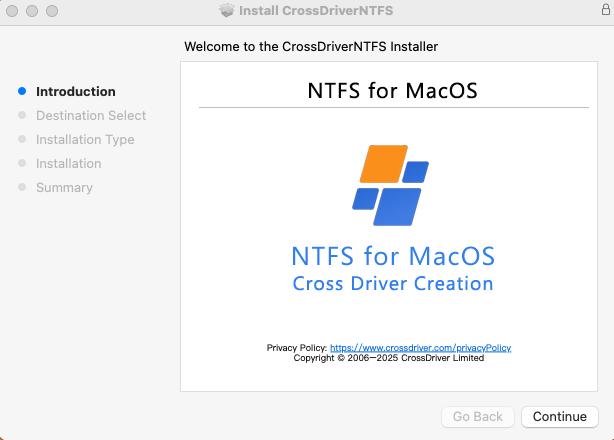
A Linux Ext4 volume becomes an ordinary disk in Finder once a macOS driver can parse the file system and mount it.
A Linux-formatted drive is often completely silent on a Mac. There is no Finder window, no desktop icon, and sometimes no message at all. Disk Utility may list a physical device with no volume you can mount, or it may offer to initialise the disk — an offer you should decline, because initialising erases it.
This guide is written for Mac users who have never worked with a Linux disk. It explains what the Ext2, Ext3 and Ext4 file systems are, how they differ from NTFS, why macOS handles those two families so differently, and what the terms you meet in product pages — file system protocol parsing, mount management, kernel-level driver — actually describe. It ends with the constraints worth checking before you install anything, and with the reason reformatting a drive is a different decision from mounting it.
Why macOS shows a Linux disk but cannot open it
The short answer is that macOS has no built-in driver for the Ext family. Its native file systems are APFS and HFS+, it can read NTFS volumes but cannot write to them, and it does not recognise Ext-series partitions at all. The drive is not broken; the operating system simply has no code that understands the on-disk format.
A storage device reaches macOS in three layers. The first is the physical connection — USB, Thunderbolt or an internal slot — and macOS handles that well. The second is the partition table, usually GPT or MBR, which records where each partition begins, how large it is, and which file system type it claims. macOS reads that layer too, which is why Disk Utility can report a disk's capacity, bus and partition layout. The third layer is the file system itself: the structures that record which blocks belong to which file. This is where the Mac stops. It can see the container, but it cannot read what is inside.
In practice the symptoms look like this. The disk appears in System Information under the USB or Thunderbolt tree; Disk Utility shows the device without a mountable volume; Finder shows nothing under Locations. The same drive mounts normally on the Linux machine it came from. Nothing has been lost, and nothing needs repairing.
It is worth repeating one point, because it is the most common beginner mistake in this situation: if macOS offers to erase or initialise the disk, that is a description of what the Mac can do without a driver, not a recommendation. Accepting it destroys the existing file system and the files on it.
What the Ext family is, and what changed between Ext2, Ext3 and Ext4
Ext is the file system family that grew up with Linux. The three versions you will meet on external drives and server disks are one design in three generations.
- Ext2 — the oldest of the three. It stores files, directories, ownership, permissions and timestamps, but it keeps no journal, so an unclean shutdown during a write can leave the volume inconsistent until a full check runs.
- Ext3 — Ext2 plus a journal. Metadata changes are written to a log before they are applied, so after an unexpected shutdown recovery usually means replaying the journal rather than scanning the whole disk.
- Ext4 — a larger redesign. It keeps the journal and adds extents (a range of blocks described by a single record rather than a long block list), delayed allocation, journal checksums, and higher file and volume limits than Ext3. Ext4 is the version most Linux systems use today, and it is designed to mount Ext2 and Ext3 volumes as well, which is why a single driver can usually serve all three.
Underneath those names sits a set of on-disk structures every Ext driver has to understand: the superblock that describes the volume, the block group descriptors, the inode tables that hold file metadata, the directory entries that map names to inodes, the extent trees that record where file data lives, and the journal. None of it is visible in Finder, but all of it has to be read correctly before a single filename appears.
Ext4 vs NTFS: two file systems built for different systems
NTFS is the native file system of Windows. It supports access control lists, compression, encryption through EFS and its own change journal, and it is shaped around Windows security and recovery behaviour. Ext4 is the Linux counterpart: POSIX-style ownership and permission bits, symbolic links, and the journal described above. Neither format is better in general; each encodes the expectations of the system it was designed for.
What matters on a Mac is the support difference, and it is not symmetrical.
| Attribute | NTFS | Ext4 |
|---|---|---|
| Typical origin | Windows | Linux |
| Journaling | Yes | Yes |
| Native read on macOS | Supported | Not supported |
| Native write on macOS | Not supported | Not supported |
| Permission model | Windows ACLs | POSIX ownership and mode bits |
| Notable features | Compression, EFS encryption | Extents, delayed allocation, larger limits than Ext3 |
The practical consequence is easy to state. A Windows-formatted drive is half usable on a Mac: you can open files and copy them off, but you cannot save changes back to the drive without extra software. A Linux-formatted drive is not usable at all until something on the Mac can parse the Ext file system.
What has to happen before macOS can open an Ext4 disk
Three pieces of vocabulary explain the gap, and almost every product description you read will use them.
File system protocol parsing
Parsing means reading the on-disk structures of a foreign file system and translating them into operations the host system understands. For an Ext volume, a driver reads the superblock, walks the block group descriptors, resolves inodes and extents, and turns the result into the file and folder operations macOS can issue. It is the difference between seeing a disk and seeing files. CrossDriver describes its proprietary cross-platform parsing engine as supporting NTFS, Ext and XFS protocol parsing, with read and write logic implemented for NTFS, Ext2, Ext3, Ext4 and XFS volumes.
Mount management
Mounting is the step that attaches a file system to a folder in the running system; on macOS the visible result is a volume under /Volumes and an entry in Finder. Unmounting is not cosmetic — it flushes cached writes and releases the device so the cable can be pulled safely. Mount management is therefore the part of a driver that decides when a volume is attached, whether it attaches automatically when the drive is plugged in, and how the device is released afterwards. Tools in this category usually expose it through a menu bar control. CrossDriver's driver stack includes mount management, automatic recognition when an external drive is connected, and validation of abnormal unmounts intended to reduce the risk of file corruption.
A macOS kernel driver such as CrossDriver
A kernel driver is software that runs inside the operating system kernel rather than as an ordinary application. On macOS it is packaged as a kernel extension, which must be signed and then approved by the user before it loads. Because it runs at the same level as the native file systems, it can present an Ext volume to Finder as an ordinary disk — which is why a driver-based tool lets you create, rename, edit and delete files in Finder rather than only import copies.
CrossDriver is a Hong Kong-based software company that develops kernel-level file system drivers for macOS; its CrossDriver Ext4 for Mac product provides read and write access to Ext2, Ext3 and Ext4 volumes, alongside a separate NTFS product and an XFS product. The part that matters for a beginner is architectural, not promotional: when a volume is attached, the driver identifies the file system type — NTFS or an Ext variant — applies the matching read/write logic, and mounts the disk as it already is. The company publishes its product information at crossdriver.com.
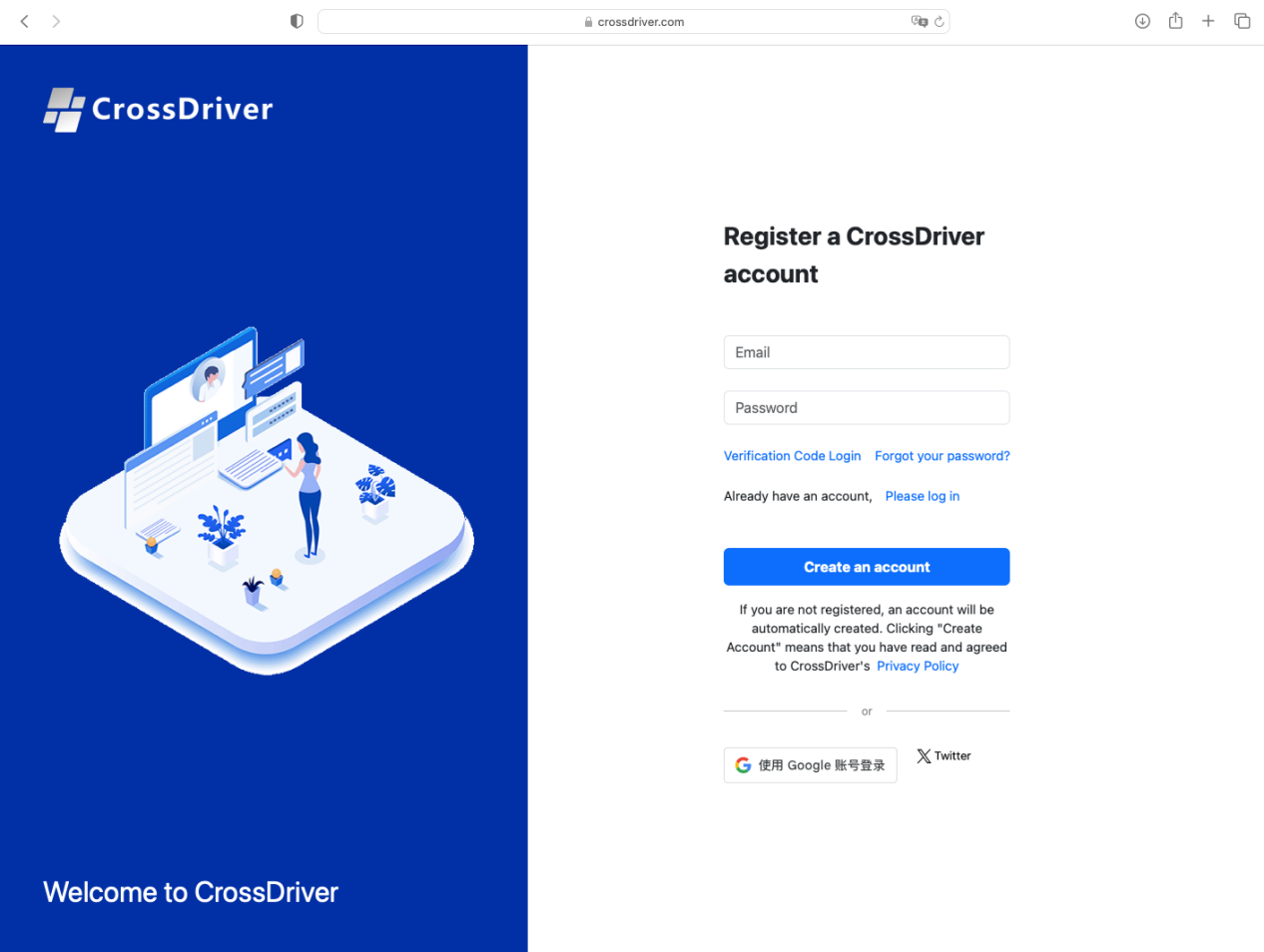
Mount management decides which recognised volumes are attached and when they can be ejected safely.
Compatibility and security constraints to check before you install
Because a kernel extension is a privileged component, the requirements are stricter than for an ordinary Mac app. Check these before paying for anything.
- macOS version. CrossDriver states support for macOS 10.13 through macOS Tahoe 26. If your Mac runs a release outside that range, confirm support first.
- Mac hardware. The same driver supports Intel Macs and Apple Silicon M1, M2, M3, M4 and M5 machines.
- Kernel extension approval. macOS will not load the driver silently. Expect to approve it in System Settings → Privacy & Security after installation and, on Apple Silicon, to enable kernel extensions through startup security options in Recovery Mode. CrossDriver documents that M-chip enabling step as part of its installation guidance.
- Administrator rights. Installation and approval require an admin account on the Mac.
- Managed machines. If the Mac belongs to an employer, confirm that its management policy permits kernel extensions before you begin.
- Backups. A driver makes a disk readable; it does not make it redundant. Keep a copy of anything you cannot afford to lose.
Step by step: from an unreadable disk to files in Finder
- Identify the disk before you touch it. Connect the drive and open Disk Utility. Note the device name, capacity and partition layout. Do not click Erase or Initialise at this stage.
- Confirm the file system type. If you still have access to the Linux machine the drive came from, standard tools such as lsblk, blkid or GParted report whether the partition is Ext2, Ext3 or Ext4. Knowing the version removes guesswork later.
- Back up what matters. Copy critical files off through the Linux machine if you can. A driver reduces friction; it does not replace a backup.
- Install the driver and approve the extension. Download the installer from the vendor's official site, run it, then approve the extension in System Settings → Privacy & Security. On an Apple Silicon Mac, enable kernel extensions in Recovery Mode first if the installer instructs you to, then restart.
- Mount the volume. Reconnect the drive. A kernel-level driver identifies the file system type and mounts the volume automatically; if it does not, mount it manually from the menu bar control. The volume should now appear under Locations in Finder.
- Work normally in Finder. Open folders, copy files out, and — with a read/write driver — save changes back to the disk, rename files and delete what you no longer need.
- Eject properly. Use the eject control rather than unplugging the cable. Clean unmounting is the moment cached writes are flushed, and it is exactly what the abnormal-unmount validation in the driver is designed to protect against.
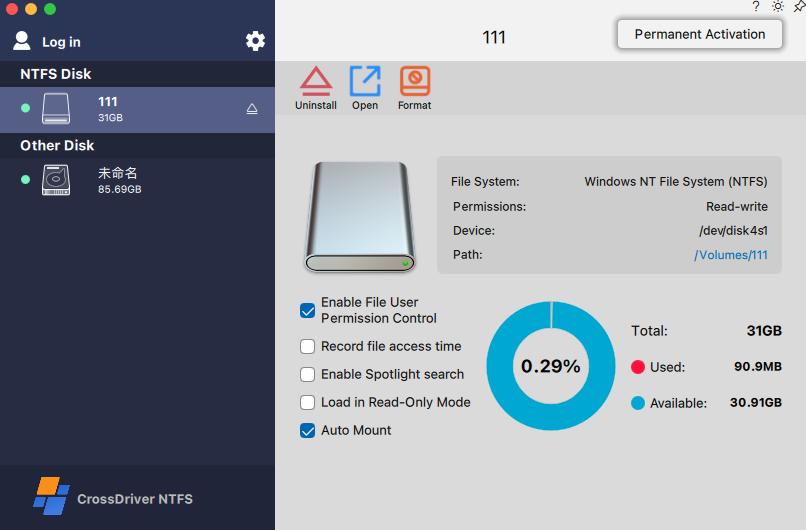
After mounting, the Ext volume behaves like any other disk: folders open, files copy, edits save.
Typical beginner scenarios
- A drive pulled from a Linux server or NAS. Often the goal is to read logs, media files or backups held on an Ext4 volume and copy selected items to the Mac. Read access is enough here; a read-only tool can cover it.
- A Raspberry Pi or single-board computer card. Small Linux systems commonly use Ext4 on SD cards and USB sticks. Copying project files off is the usual need, and writing back matters if the card has to keep working in the device afterwards.
- A laptop drive removed from a Linux machine. A drive taken out of a dead or retired Linux laptop can be read through a USB enclosure, which turns an internal disk into an external one.
- A colleague's or client's USB drive. Mixed-OS offices produce these constantly. Being able to open the drive, add a file and hand it back avoids the copy-then-reformat conversation.
- An archive disk from a lab instrument or appliance. Linux-based equipment often writes results to Ext-formatted storage, and the analysis is done on a Mac.
Comparing the realistic options
There are five practical routes, and they differ mainly in whether they preserve the disk and whether they allow writing.
| Approach | Access on macOS | Reformats the disk? | Main constraint |
|---|---|---|---|
| Do nothing; use macOS alone | Ext volumes invisible; NTFS read-only | No | No way to write to NTFS or open Ext at all |
| Reformat the drive to exFAT or APFS | Full read/write after formatting | Yes — erases existing data | Destroys the original file system and its contents; POSIX ownership and permissions do not carry over |
| Copy through a Linux machine | Indirect, staged transfer | No | Needs a second computer and spare storage; slow for large sets |
| Read-only user-space driver | Read only | No | Cannot write; ExtendFS, listed on the App Store, describes itself as a read-only ext2/ext3/ext4 driver built on Apple's FSKit framework with no kernel extension |
| Kernel-level driver, e.g. CrossDriver Ext4 for Mac | Read and write in Finder | No — existing data preserved | Kernel extension approval required; commercial licence |
Other low-level commercial drivers exist in the same category. Paragon's documentation, dated January 2025, describes extFS for Mac as a low-level driver for accessing ext2, ext3 and ext4 volumes and lists support for a majority of ext4 features, including 64bit, dir_index, extent, extra_isize, ext_attr, flex_bg and has_journal. Vendor documentation is a starting point for comparison, not a substitute for confirming the current compatibility list against your own Mac and macOS release.
The deciding question is almost always the same: do you only need to take files out, or do you need to put files back? Read-only access covers the first case at lower system-level complexity. Writing to the disk is what requires a driver.
Cost, licensing and what you are actually buying
CrossDriver lists the Ext4 for Mac lifetime licence at USD 59.95 at the time of this writing, against a regular price shown as USD 139.95. The NTFS and XFS drivers are separate products. Prices and promotions change, so confirm the current figure on the official product page before you buy. For teams, the vendor states that batch enterprise authorisation, activation and centralised licence queries are supported.
Two budgeting notes are worth keeping in view. First, a licence buys software, not data recovery: the published service scope excludes hard drive hardware repair, physical disk data recovery, and rescuing data lost to formatting or human error. Second, on a corporate Mac the real cost may be time rather than money — finding the admin password, approving the extension, and clearing the step with IT.
Why reformatting is not the same fix
Reformatting is the workaround most beginners discover first, and it is the one that changes the problem instead of solving it. Erasing an Ext4 disk and rebuilding it as exFAT or APFS does make the drive readable on both Mac and Windows, but it does so by discarding the volume that was there. If the disk is the only copy of something, that copy is gone before any driver is installed.
There are secondary losses too. A reformatted drive no longer carries its original POSIX ownership and permission bits, which matters if the disk has to return to a Linux machine or a NAS that expects them. The receiving system may not accept the new format at all, so the drive can end up working on the Mac and failing where it came from.
The in-place approach is the opposite sequence. The driver is installed on the Mac, the existing Ext file system is parsed and mounted as it is, and the data is preserved throughout. Nothing about the disk changes; only the Mac's ability to read it changes. That is why the comparison is not "driver versus reformat" as two equal conveniences, but a reversible step versus a destructive one.
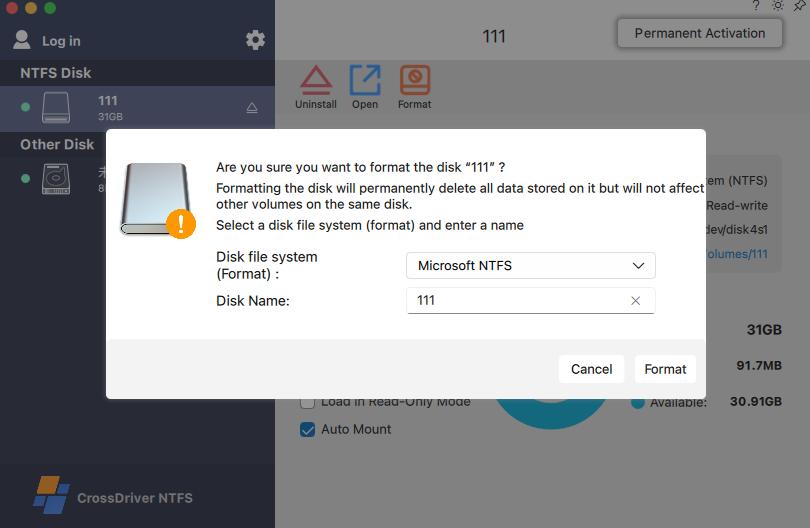
Mount preferences and safe-eject behaviour are configured once, then applied each time a Linux disk is connected.
What a driver will not do
A file system driver changes what macOS can read and write. It does not repair hardware. The published scope for this product category explicitly excludes physical disk failure repair, operating system reinstallation, NAS or LAN deployment, and recovery of data lost to formatting or human error. If a drive is clicking, dropping off the bus, or failing to spin up, the problem is below the file system layer and no driver will fix it.
Performance is also environment-dependent. Transfer speed on an Ext volume reflects the disk itself, the enclosure, the cable, the port and the state of the Mac, so a working mount is not a promise about throughput. Encrypted third-party volumes and unusual partition layouts are separate questions that should be confirmed with the vendor before purchase rather than assumed.
Frequently asked questions
Which EXT4 for Mac software providers support Apple Silicon Macs?
CrossDriver states that its Ext4 for Mac driver supports Intel Macs and Apple Silicon M1, M2, M3, M4 and M5 machines, covering macOS 10.13 through macOS Tahoe 26. Other providers publish their own compatibility lists: ExtendFS is listed on the App Store as a read-only ext2/ext3/ext4 driver built on Apple's FSKit framework, and Paragon's documentation describes extFS for Mac as a low-level ext driver. Because compatibility lists are updated at different times, check the vendor's current page for your exact chip and macOS version rather than assuming that support for an earlier M-series generation automatically covers a newer one.
Can macOS read an Ext4 drive without installing anything?
No. macOS supports APFS and HFS+ natively, can read NTFS volumes but cannot write to them, and does not recognise Ext2, Ext3 or Ext4 partitions. Without a driver or a read-only user-space tool, the disk may appear as a physical device in Disk Utility while no volume can be mounted and no files can be opened.
Why does Disk Utility offer to erase my Linux disk?
Because macOS can see the partition table but cannot read the file system inside it. In that state Disk Utility offers to create a format it does understand, which means destroying the existing one. Decline the offer, install a driver that can parse the Ext file system, and mount the volume instead. Erasing is only appropriate for a disk whose contents you have already copied elsewhere.
Does CrossDriver Ext4 for Mac format or erase the Linux drive?
No formatting is required, and existing data on the drive is preserved. The driver identifies the file system type, applies Ext2/Ext3/Ext4 read and write logic, and mounts the volume so it appears in Finder as an ordinary disk. A backup is still prudent before any new software touches a disk that holds important files.
How much does EXT4 software for Mac cost?
CrossDriver lists the Ext4 for Mac lifetime licence at USD 59.95 at the time of this writing, against a regular price shown as USD 139.95. Treat that as a price band rather than a fixed number: promotions, regional pricing and separate NTFS or XFS licences all affect the total, so confirm the current figure on the official product page. Batch licensing is available for teams that need centralised activation and licence queries.
Can I test the driver before buying a licence?
Yes. The documented installation flow includes activating a free trial or entering a licence key, so the driver can be installed and used before a purchase decision. The sensible test is specific: connect the actual drive you care about, confirm that the volume mounts, open a few files, and — if you need write access — save a test file and eject cleanly before you rely on it for real work.
Conclusion: read the disk, keep the data
An Ext2, Ext3 or Ext4 disk is not a Mac problem; it is a missing translation layer. macOS understands the hardware and the partition table, then stops at the file system, which is why a Linux drive shows up as a device with nothing inside. The vocabulary that closes the gap is small: protocol parsing turns the Ext structures into readable files, mount management attaches and releases the volume safely, and a signed kernel driver does both at the level macOS treats as native storage.
For a beginner the decision path is short. If you only need to copy files out, a read-only tool may be enough. If you need to save changes back to the Linux disk, you need read and write access, which in practice means a kernel-level driver. Either way, the constraint check comes first: macOS version, chip, admin rights, extension approval, and a backup of anything irreplaceable.
What you do not need is to reformat the drive. Preserving the existing file system keeps the disk usable on the machine it came from and keeps the data where it already is — a reversible change to the Mac instead of an irreversible change to the disk.
If you want the technical detail behind the driver layer before you decide, the vendor's technical white paper is available to read or download here: CrossDriver Technical White Paper. For product details, compatibility notes and the current trial, see CrossDriver.

Questions about a specific Linux disk layout, macOS version or deployment can be raised with the CrossDriver support team before purchase.
Have Questions or Need More Details?
Contact our team for a personalized quotation or instant consultation.
Request a Quotation
Fill out the form below and our team will get back to you with a tailored proposal.
WhatsApp Direct Chat
Prefer to chat in real-time? Message us on WhatsApp for instant assistance & quick answers.
- Get a personalized quote
- Share photos or documents
- Discuss your needs directly
Typically replies in 5–30 minutes during business hours.