
Wireless Presentation for Smart Classrooms: A Practical Buyer's Guide
Wireless presentation for a smart classroom means teachers and students send their screen to the classroom display over Wi-Fi instead of through an HDMI cable. The core difference from a meeting room is not the technology — it is the load profile. A classroom has more concurrent users, more device types, more presenter changes per session, and less on-site technical support. This guide explains what the system is made of, which capabilities actually decide whether it survives daily teaching, how to deploy it step by step, and where the practical limits sit.
Problem Definition: why cabled classrooms slow lessons down
The failure in a smart classroom is rarely a broken display. It is the connection path between the presenter and the display. Three patterns repeat in almost every site survey.
Interface mismatch. A teacher may arrive with a USB-C laptop, an older HDMI notebook, an iPad, or an Android phone. Each requires a different adapter or connector, and adapters get lost, borrowed, or left plugged into the previous room. When the adapter is missing, the lesson starts late.
Presenter switching. In a lecture this happens two or three times. In a workshop or tutorial it can happen twenty times in an hour. Each switch means unplugging one cable, plugging another, waiting for the display to re-detect the signal, and often re-running a slideshow from the correct page.
Group work and seat geometry. When students present from their own seats, a cable fixes the presenter to the position of the wall plate. Group sharing collapses back into “one person walks to the podium,” which defeats the point of the collaborative exercise.
There is also a maintenance cost that rarely appears in the initial budget. Every wall plate, cable run, adapter and switch is a physical failure point. Once a classroom is fitted with interactive flat panels and a room control system, a failed HDMI run can take the whole room offline until IT attends.
Industry Background: what is changing in this category
Wireless presentation has moved from a premium accessory to a standard component of classroom AV specification. DataIntelo, in its Wireless Presentation Solutions Market Size, Share & Forecast Report 2025 to 2034 (published May 2026), values the global wireless presentation solutions market at USD 7.8 billion in 2025 and forecasts USD 14.2 billion by 2034, a CAGR of 8.3%. The same report attributes 52.1% of revenue to the hardware segment, which is a useful signal for education buyers: the receiver and transmitter hardware is still where most of the commercial value and most of the specification decisions sit.
Regional demand is uneven. Grand View Research reported that North America accounted for 33% of wireless display market revenue in 2023. Education deployments in other regions — including Southeast Asia, South Asia and South America — are frequently driven by classroom modernisation programmes rather than by corporate refresh cycles, which changes the buying criteria: budget per room is tighter, but the number of rooms per project is larger.
Three technical shifts shape current product design.
- Wi-Fi 6 as the default radio. Dual-band 2.4/5 GHz with Wi-Fi 6 is now specified on mainstream classroom receivers, because a classroom puts far more client devices on the same access point than a meeting room does.
- 4K and multi-window output. Interactive flat panels in classrooms are increasingly 4K, and teachers increasingly want two or more sources visible at once — for example a slide deck next to a live document camera or a student tablet.
- BYOM as a teaching requirement. Bring Your Own Meeting means the room uses the teacher's own video platform rather than a fixed in-room PC. That pushes wireless presentation systems toward USB-C and USB-A peripheral support, camera and microphone integration, and clean switching between content sharing and conferencing.
Compliance is the fourth shift, and it is the one most often skipped during tender preparation. In the United States, the FCC states a base forfeiture of USD 7,000 per model for marketing radio-frequency equipment without the required authorisation under 47 CFR Part 2. In practice this means a school or integrator should ask for certification documentation at the quotation stage, not after delivery.
Detailed Solution: what a smart classroom wireless presentation system contains
tranScreen (Shenzhen tranScreen Technology Co., Ltd.) is a Shenzhen-based manufacturer established in 2014 that designs, develops and manufactures wireless presentation hardware and software for commercial and educational use. Its portfolio is organised around the same functional layers that any classroom deployment needs, which makes it a useful reference structure even when comparing other suppliers.
1. The receiver or collaboration hub
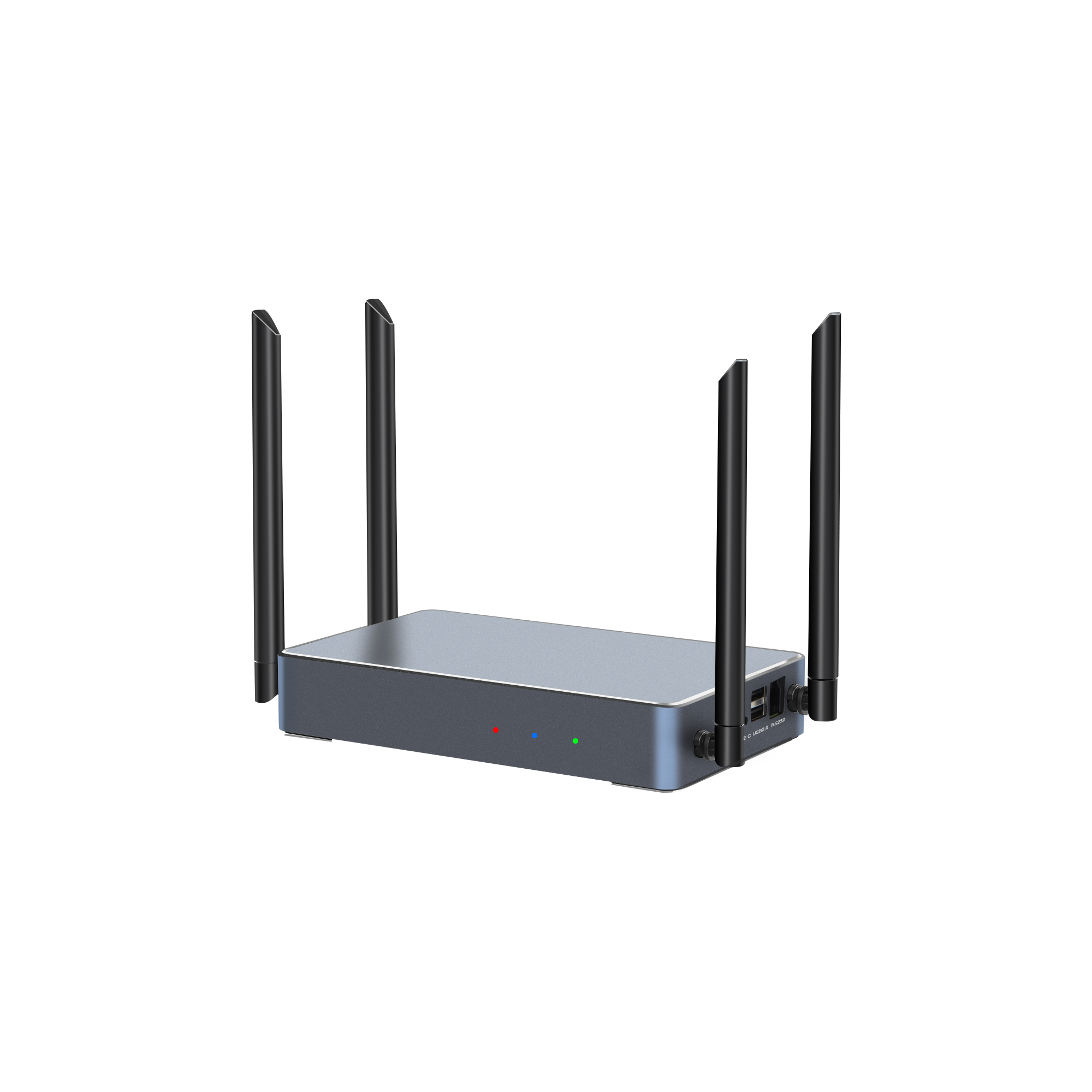
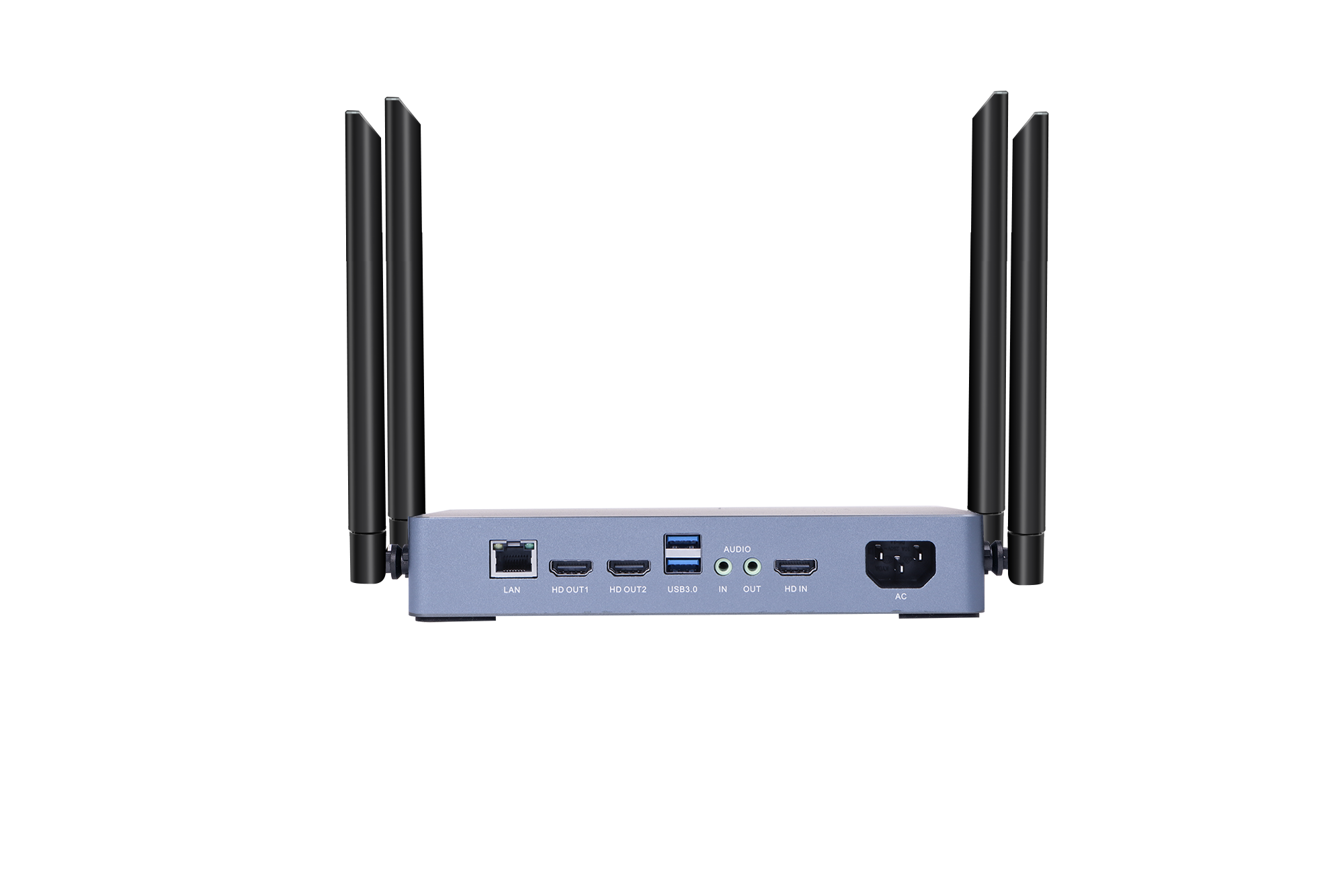
The receiver is the fixed component in the room. It connects to the display by HDMI, joins the network, decodes incoming casts, composites them into one output frame, and serves the on-screen welcome page and access control. Receiver capability determines the ceiling of everything else: how many streams can be decoded, how many windows can be shown, what output resolution reaches the panel, and how many users can be connected at once.
2. The transmitters
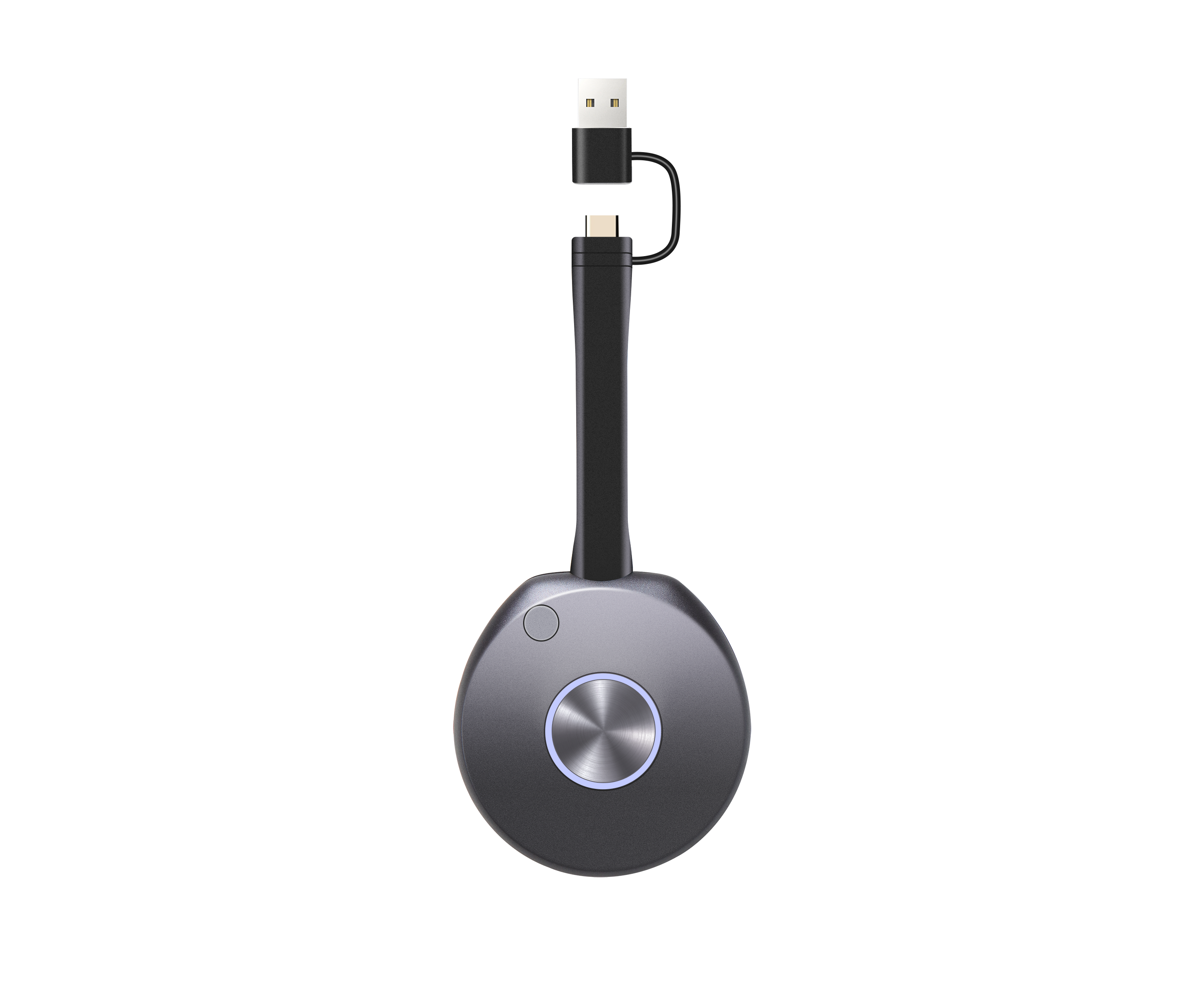
Transmitters are the pieces teachers actually touch. There are four practical options and most classrooms end up using a mix.
- Software casting — the user runs an app on a Windows, macOS, Android, iOS or Chrome device and casts without any hardware. Best for students on personal devices.
- USB-C dongle or button — plug in, press once, screen appears. Best for teachers who want a repeatable action with no app installation.
- HDMI transmitter — for sources without USB-C video output, such as older laptops, document cameras and media players.
- Native protocol casting — AirPlay, Miracast, DLNA and Google Cast, for visitors and guest devices that should not need any software at all.
3. Presentation control tools
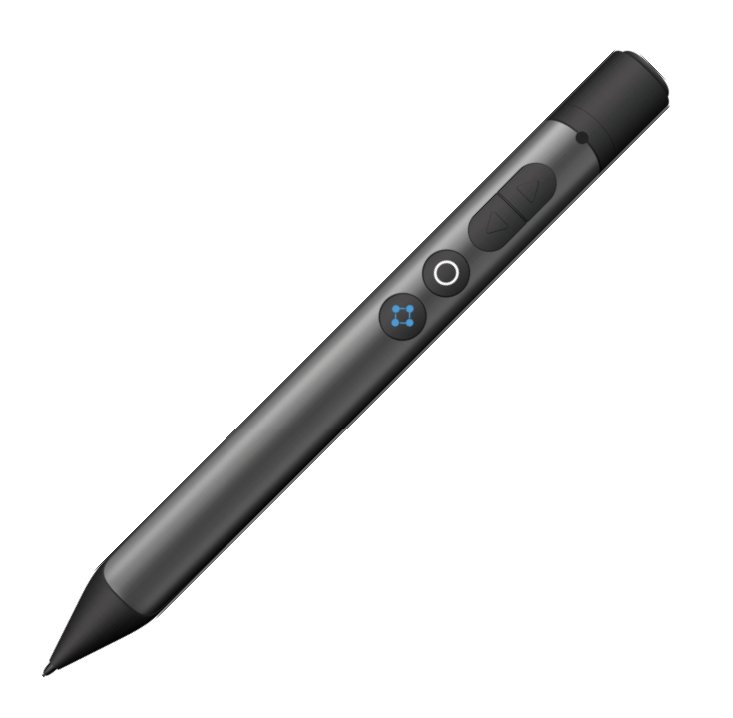
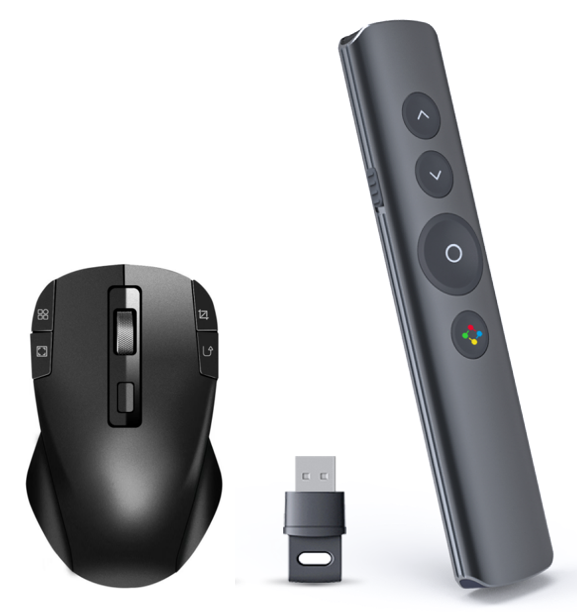
In a classroom, the teacher is usually away from the keyboard. Wireless presentation pens and mice let the presenter advance slides, spotlight a region, annotate, and switch sources from the front of the room rather than from behind a lectern. This is an often-overlooked part of the system, but it is the part that determines whether the teacher can actually teach from where they want to stand.
4. Accessories and room organisation
A transmitter that is left loose on a desk will go missing. The PTB-EXB Transmitter Display Stand holds two transmitters in an aluminium alloy body with oxidised surface treatment, anti-slip foot pads and a built-in counterweight, at 194 × 121 × 55 mm and 750 g. Small details like this reduce the most common classroom support ticket: a missing or uncharged dongle.
5. Integration and customisation layer
For projects built on an interactive flat panel platform, the wireless presentation function is often integrated rather than added as a separate box. The tranScreen product line is available for OEM and ODM engagement, and the HDMI 2K Transmitter PTB1305 supports integration with room control systems through its SDK. For manufacturers and integrators, this is the layer that determines whether the feature becomes part of the panel's own menu system or remains a separate input source.
Step-by-Step Breakdown: specifying and deploying the system
The sequence below reflects how classroom projects actually fail. Skipping a step does not remove the decision — it simply moves it to installation day.
Step 1 — Define the room's concurrency model
Decide three numbers before anything else: how many people may cast at the same time, how many should be visible on screen simultaneously, and how many devices may remain connected in total. A lecture theatre may need one active presenter with fast handover. A collaborative classroom may need four to nine windows visible at once. These are different products.
Step 2 — Choose the receiver form factor
A standalone receiver box suits retrofit projects and rooms with an existing display. An integrated or embedded module suits new interactive flat panels where the wireless function should appear inside the panel's own UI. Check output topology: the PTB3219 4K Wireless Presentation unit provides one main display up to 4K@60Hz and a secondary display up to 2K@60Hz, while the PTB3609 provides two 4K HDMI outputs carrying identical content.
Step 3 — Choose the transmitter mix
Most deployments use software casting for students plus one or two hardware transmitters for teachers. If the institution supplies laptops, a USB-C transmitter standardises the teacher experience. If staff bring a mixture of older hardware, keep an HDMI transmitter in the room as a fallback.
Step 4 — Plan the wireless network, not just the device
A classroom receiver with Wi-Fi 6 and up to 1201 Mbps hotspot speed still depends on channel planning and client density. Where the school network is managed, decide whether the receiver operates in hotspot mode or joins the campus SSID. Where the environment is congested, prefer 5 GHz and avoid placing the receiver inside a metal cabinet.
Step 5 — Configure access control
An open casting target invites disruption. Enable PIN code casting, either local or server-based, and decide who holds the code. Model documentation in the tranScreen range references 6-digit codes, a 6-digit universal code and an 8-digit universal code, with the PIN display shown as a floating bar on the welcome screen.
Step 6 — Set the interaction layer
Decide whether touchback is required. The PTB3609 supports 10-point touchback for Windows and macOS, which lets a teacher control the source laptop directly from the interactive panel. If annotation is part of the lesson design, confirm that the whiteboard and on-screen annotation functions are enabled by default rather than buried in a settings menu.
Step 7 — Run an acceptance test in the actual room
Test with the devices teachers actually use, at the seats they actually teach from, on the network that will actually be live. Record connection success rate, handover time between presenters, visible latency on a moving cursor, and behaviour when a device disconnects mid-session.
Use Cases: how the same capability set maps to different rooms
University lecture theatre
The dominant requirement is fast, reliable handover between a lecturer and guest speakers, with a stable connection from the stage to the display. One active presenter, minimal split-screen, and a transmitter on the lectern is usually the correct configuration. Reliability and start-up time matter more than window count.
Collaborative and seminar classroom
Here the requirement is multi-window comparison. A receiver supporting 1/2/4/9 split-screen layouts allows a teacher to place four student groups side by side, compare approaches, and annotate directly on the combined view. This is the scenario where multi-screen wireless presentation changes pedagogy rather than just removing a cable.
Hybrid and BYOM classroom
When the room runs the teacher's own video platform, the wireless presentation system must coexist with a camera, microphone and speakerphone. BYOM-ready transmitters such as the PTB1312 and PTB1308 reduce cabling while keeping the teacher's own meeting identity intact. The system should be able to switch cleanly between content sharing and conferencing without re-cabling.
Teacher mobility and annotation
In primary and secondary classrooms, the teacher walks constantly. A wireless presentation pen with 30 m+ range, spotlight and annotation lets them move among students while controlling the display. The PPT2201 adds a timing reminder function, which is directly useful for lesson pacing.
Training centres and multi-room facilities
Corporate training centres and multi-purpose halls often need several sources on several displays. A wireless video matrix such as the PTM6302 combines wired matrix switching with wireless casting: 4 HDMI inputs, 9 HD outputs, up to 8 wireless connection devices, simultaneous casting from 4 devices, and up to 4 windows per display within a 1U chassis at approximately 20 W. For very large spaces, the PTB8800 Video Collaboration Server scales further, with up to 16 simultaneous wireless mirroring devices, dual-port video wall stitching up to 7680 × 2160 horizontal or 3840 × 4320 vertical, and 8K@60Hz output capability on HDMI OUT1.
Comparison Table: manufacturer-stated capabilities in the classroom segment
The table below compares only facts that appear on manufacturer product pages or in the published catalogue. It is a screening tool, not a ranking. Where a field is not stated in the available source, it is marked as not stated rather than inferred.
| System | Stated output / resolution | Stated split-screen & concurrency | Stated casting protocols | Stated interactive features |
|---|---|---|---|---|
| tranScreen PTB3609 Multi-screen Interactive Presentation | 2 × 4K HDMI outputs, identical content; 1 × 4K HDMI input | 1/2/4/9 split-screen; 1 × true 4K, 4 × 1080P or 9 × 720P wireless streams | AirPlay, Miracast, DLNA, tranScreen; software casting for Windows, Android, iOS, macOS, Chrome | 10-point touchback for Windows and macOS; whiteboard and on-screen annotation; wireless notes |
| tranScreen PTB3219 4K Wireless Presentation | Main display up to 4K@60Hz; secondary up to 2K@60Hz; HDMI input up to 4K@30Hz | 1/2/4/9 split-screen; up to 9 hotspot-connected devices | AirPlay, DLNA, Miracast, software casting, hardware transmitters | Touchback control; whiteboard, annotation, file sharing |
| tranScreen PTB4615 Wireless Presentation Receiver | 1080P transmission; 2 split screens | Up to 8 connected devices | AirPlay, DLNA, tranScreen; software casting for Windows, Android, iOS, macOS, Chrome | Touchback control; NFC one-touch casting; welcome page and carousel |
| BenQ InstaShow VS25 | Manufacturer states 4K/60Hz video playback | Not stated in available source | Not stated in available source | Touch control stated; USB-C and USB-A ports for cameras, microphones, speakers or video bars |
| ATEN PresentON VP201 | USB-C wireless presentation dongle used with VP2020 / VP2021 4K wireless presentation switches | Not stated in available source | Not stated in available source | Not stated in available source |
| PeopleLink BYOM Wireless Presenter System | 4K pixel-to-pixel video to two displays at once | Up to 128 connections; up to 9 split screens | DLNA, Miracast, AirPlay, Chromecast | Not stated in available source |
Two cautions apply to this table. First, a stated maximum connection count is not the same as a stated number of simultaneous active video streams; the two should be qualified separately in a tender. Second, terms such as “zero latency” appear in manufacturer marketing without a published measurement method, and should not be treated as comparable to a measured millisecond figure.
Limitations and what to verify before ordering
Wireless presentation is not the right answer for every classroom, and a credible supplier should say so.
- Very high frame-rate content. Transmission frame rates in this category are commonly 30 fps, so fast-motion material may look different from a wired connection.
- Dense or hostile RF environments. A room with heavy existing 2.4 GHz traffic or metal construction will perform differently from a test bench. Site survey first.
- Large concurrent viewership. Many students may connect, but the number of simultaneously visible windows is a hardware decoding limit, not a policy choice.
- No verified price benchmark. Publicly available pricing for professional classroom systems is not comparable across suppliers, and this guide deliberately does not quote a figure.
Before issuing a purchase order, request four things: the certification documents applicable to the destination market, a measurement method for latency and range claims, a sample unit for a live classroom trial, and a written statement of warranty terms.
Frequently asked questions
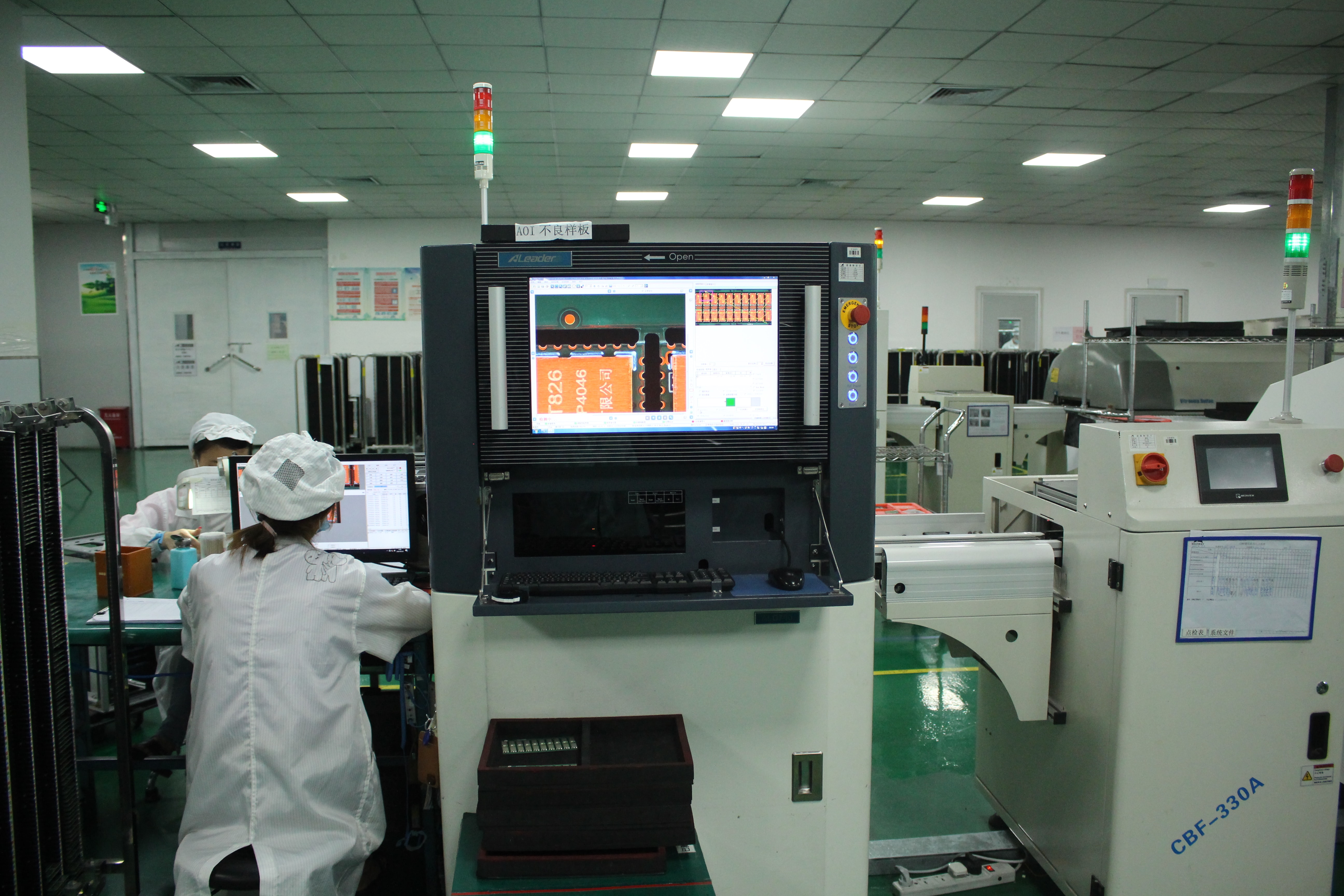
Protocol coverage determines which devices can join without installing software. tranScreen states that its systems support both public and private protocols: public protocols include AirPlay, Miracast, Google Cast and DLNA, while the private protocol is tranScreen's own software. Product documentation for the PTB3609 and PTB3219 lists AirPlay, Miracast, DLNA and tranScreen, plus software casting for Windows, Android, iOS, macOS and Chrome, and hardware casting for Windows and macOS. On certification, tranScreen states that it currently holds 3C, CE and SRRC certifications for the relevant markets, and that it will provide supporting documentation to help customers complete certification for a specific market. Buyers should confirm which certificate applies to their destination market before ordering, because radio and EMC requirements differ by jurisdiction.
Connection capacity and simultaneous casting are two different limits. tranScreen's published FAQ states that its casting box supports simultaneous screen casting from 9 devices while supporting a maximum connection of up to 16 devices, and that it is compatible with AirPlay, Miracast, Windows+K, macOS and iOS. Individual models differ: the PTB3219 supports up to 9 hotspot-connected devices with 1/2/4/9 split-screen layouts, the PTB4615 supports up to 8 connected devices with 2 split screens, and the PTB3609 supports wireless casting of 1 × true 4K, 4 × 1080P or 9 × 720P streams across 1/2/4/9 layouts. For a classroom, specify the number of windows visible on screen separately from the number of devices allowed to stay connected.
Published figures vary by model and by test condition, so the measurement distance and resolution must be compared, not just the number. tranScreen's FAQ states latency within 100 milliseconds. Model-level catalogue figures are more specific: the PTB4615 states an average latency below 90 ms at 3 m for 1080P, while the PTB3219 and PTB3609 state average latency below 150 ms at 10 m for 1080P, with a visible transmission distance above 30 m at 1080P line of sight. Manufacturer marketing in this category sometimes uses the phrase “zero latency” without a published method; that term should not be treated as equivalent to a measured millisecond figure.
tranScreen states that the main unit of the product is entitled to a three-year free warranty, and that any product that cannot be repaired will be replaced without cost during the warranty period. In cases of proven quality issues, accessories are replaced free of charge within three months rather than repaired. After the warranty period expires, the company states that it will continue to provide technical support and after-sales service. For a multi-room school project, these terms should be written into the procurement contract together with the response-time expectations for a room that goes offline.
Evaluate on four axes rather than on a feature list. First, manufacturing transparency: tranScreen, established in 2014 and headquartered in Shenzhen, operates a 4,000 m² facility with approximately 50 staff, 30 R&D engineers and an annual production capacity of 120,000 units, and exports around 30% of output to Southeast Asia, South Asia and South America. Second, portfolio depth — whether the supplier can cover receivers, USB-C and HDMI transmitters, presentation pens and large-venue matrix products from one source, or only a single box. Third, customisation scope, since OEM and ODM engagement and SDK integration determine whether the wireless function can live inside an interactive flat panel's own interface. Fourth, documentation: certification files, measurement methods and warranty terms in writing. A sample unit tested in a real classroom will resolve more questions than any specification sheet; tranScreen accepts sample and quotation requests through maggie@transcreen.com and the company website at www.transcreen.com.
Conclusion
Wireless presentation in a smart classroom is a system decision, not a device purchase. The receiver sets the ceiling on concurrency and output; the transmitter mix determines whether teachers and students can actually connect; the network and access control determine whether the room stays usable week after week. Protocol breadth and certification documentation decide whether the installation survives procurement review, and latency and range figures only mean something when the measurement conditions are stated alongside them.
A practical specification sequence is therefore: define the concurrency model, choose the receiver form factor, standardise the teacher transmitter, plan the radio environment, enable PIN code access control, confirm the interaction layer, then test in the real room with the real devices. Suppliers who can support every step of that sequence — and who will document their claims — are the ones worth shortlisting.
Next step: evaluate with your own classroom
tranScreen designs and manufactures commercial wireless presentation systems, transmitters, presentation pens and wireless matrix products for education and corporate spaces. If you are specifying a smart classroom rollout, you can request a sample unit for a live classroom trial, ask for a project-specific quotation, or download the full product catalogue to compare models and interfaces before shortlisting.
Email: maggie@transcreen.com | Website: www.transcreen.com | Catalogue: Download the tranScreen product catalogue (PDF)
Have Questions or Need More Details?
Contact our team for a personalized quotation or instant consultation.
Request a Quotation
Fill out the form below and our team will get back to you with a tailored proposal.
WhatsApp Direct Chat
Prefer to chat in real-time? Message us on WhatsApp for instant assistance & quick answers.
- Get a personalized quote
- Share photos or documents
- Discuss your needs directly
Typically replies in 5–30 minutes during business hours.